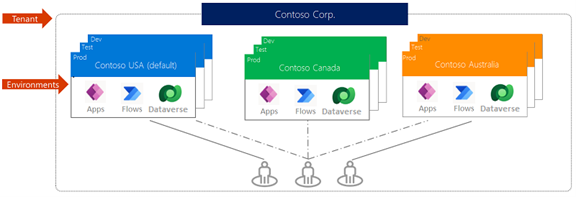
Getting started with Microsoft Power Platform can be exciting, but also a little overwhelming. One of the first concepts every beginner should learn is how to work with environments. Environments are key to keeping your apps, automations, and data organized and secure. Mastering them early will save you time, prevent frustration, and help you roll out solutions smoothly.
What Is an Environment?
Think of an environment as a workspace where all your apps, flows, data, and connections live. Instead of putting everything in one place, organizations usually create multiple environments for different purposes, such as:
- Development (Dev): A safe space to build and experiment.
- Test: For validating features before they go live.
- Production: The real, live environment where end-users interact with your apps and data.
This separation ensures you can innovate without risking your business-critical applications or data.
Why Start in Development, Not Production?
As tempting as it may be to dive straight into your live environment, beginners should always start in Development. Here’s why:
- You avoid breaking existing apps or confusing real users.
- You can safely test new features, flows, and automations.
- Bugs and issues are caught early, before they reach production.
- It’s easier to manage permissions and troubleshoot in a sandbox.
Simply put development first, production last.
Step-by-Step: Creating a New Environment
Ready to set up your own? Here’s how:
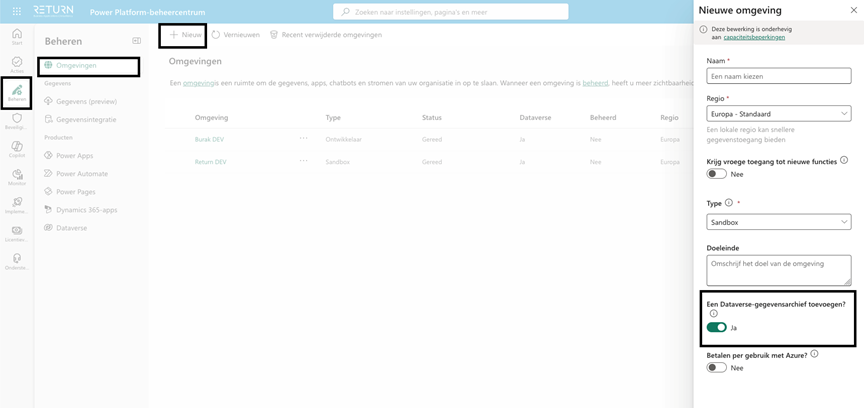
- Go to the Power Platform Admin Center: https://admin.powerplatform.microsoft.com
- In the left menu, select Manage, then Environments.
- Click + New.
- Enter a clear name (e.g., “Development” or “Test”), choose your region, and select an environment type. For beginners, Sandbox is the best choice.
- Decide if you need a Dataverse database. (Tip: say Yes if you’re building Model-Driven Apps or need custom tables.)
- Click Next, confirm your settings, and wait a few minutes for the environment to be provisioned.
Best Practices for Beginners
- Separate by purpose: Always use different environments for development, testing, and production.
- Name clearly: Use names like Development, Test, and Production to avoid confusion.
- Manage permissions individually: Security roles don’t transfer between environments, set them up for each one.
- Use solutions for migration: When moving apps and flows from Dev to Production, use Solutions. This bundles everything into one package and makes deployment easier and less error prone.
- Reconnect data sources: After importing to a new environment, double-check connections and flows.
- Keep it clean: Regularly review and remove unused environments.
Pro Tips
- Think ahead: Even if you’re building a small app, start in Development. Scaling later becomes much easier.
- Stay organized: Document who has access to which environment and why.
- Experiment safely: Treat your Dev environment as your test playground, learn and only publish when you’re confident.
Final Thoughts
Learning how to manage environments may seem like a small step, but it’s one of the most important habits you can build in Power Platform. By separating development from production, setting up clear permissions, and using solutions for deployment, you’ll avoid costly mistakes and deliver reliable apps with confidence.
Whether you’re just experimenting with your first flow or rolling out a full business app, working smart with environments sets the foundation for long-term success.